How to create coloured hyperlinks in an index in a PDF file
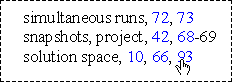
This article explains how to create coloured hyperlinks in an index in a PDF file, using Microsoft Word as the source document for the PDF file. The following screenshot shows an example from a hyperlinked index in a PDF file:
Make sure that:
- Adobe Acrobat (the full product, not Acrobat Reader) is installed on your system.
- Sonar Bookends Activate plug-in for Adobe Acrobat is installed on your system. A free demonstration version is available from Virginia Systems (www.virginiasystems.com).
- You know how to create and change styles in Microsoft Word
 .
. - You know how to create an index in Microsoft Word
 .
. - You know how to import a macro into Microsoft Word (https://wordmvp.com/FAQs/MacrosVBA/CreateAMacro.htm).
Background
PDF files can contain hyperlinks. Typically, to show readers that text is a hyperlink, it is coloured blue, and sometimes, it is underlined.
Many technical writers create PDF files using Word as the source document. Most Word-to-PDF converters create a hyperlink in the PDF file if a hyperlink is in the Word document. But, Word does not create hyperlinked cross-references in an index. Therefore, a PDF creation tool cannot directly generate a hyperlinked index.
A slow method of creating hyperlinks in the PDF file is to use the Link tool in Adobe Acrobat. A faster method is to use the Sonar Bookends Activate plug-in for Adobe Acrobat. The plug-in can create hyperlinks for page numbers in indexes in PDF files.
The plug-in does not change the colour of new hyperlinks, and it does not create visible rectangles for the hyperlinks. Therefore, how do we get the colour into the hyperlinks in the index in the PDF file? You can change the colour of the hyperlinks using the TouchUp Text tool or you can create visible rectangles using the Link tool, but this is not practical because it takes too long. (Possibly, the task can be automated using a macro in Adobe Acrobat, but we do not know of a macro that is available in the public domain.)
Our method to create coloured hyperlinks is as follows:
- Use a macro in Word to change the colour of locators in the index
- Generate the PDF file using Adobe Acrobat
- Use Sonar Bookends Activate to create the hyperlinks.
The following sections give details of how to do this.
Setting up Word to use the macro
In a Word index, the headings have the paragraph style 'Index 1', subheadings have the style 'Index 2', and so on. When you run the macro, it applies a character style called 'cross-reference' to digits in the paragraphs that have the style 'Index 1', 'Index 2', or 'Index 3'.
The macro sometimes incorrectly applies the style 'cross-reference' to digits that will not be hyperlinks:
- The macro does not distinguish page numbers and other numbers. For example, if an index heading is '3D graphics, 27', the 3 in 3D will have the style 'cross-reference'.
- When a locator is a page range that is separated using a hyphen, Sonar Bookends Activate creates a hyperlink for the start page, but not for the end page.
To set up Word
- Create a character style called 'cross-reference' in your Word document. Typically, make the font colour blue, and possibly, make the text underlined.
- Import the macro 'IndexLocatorColour' into Word.
IndexLocatorColour macro
Sub IndexLocatorColour()

'Formats all digits in an index with the style "cross-reference"
'The style must exist in the document.

Call formatdigit("Index 1")
Call formatdigit("Index 2")
Call formatdigit("Index 3")

MsgBox ("Applied style cross-reference to Index 1 thru Index 3" & vbCrLf & _
        "Manually remove format from digits that are not in locators!")

End Sub

Function formatdigit(StyleToFind As String) As Boolean

On Error GoTo ErrorHandler:

Selection.Find.ClearFormatting
Selection.Find.Style = ActiveDocument.Styles(StyleToFind)
Selection.Find.Replacement.Style = ActiveDocument.Styles("cross-reference")
With Selection.Find
    .Text = "^#"
    .Replacement.Text = ""
    .Forward = True
    .Wrap = wdFindContinue
    .Format = True
    .MatchCase = False
    .MatchWholeWord = False
    .MatchAllWordForms = False
    .MatchSoundsLike = False
    .MatchWildcards = False
End With
Selection.Find.Execute Replace:=wdReplaceAll

ErrorHandler:
    If Str(Err.Number) <> 0 Then  ' error number 0 is correct termination.
        strErrorMsg = "Error # " & Str(Err.Number) & " was generated by " _
                & Err.Source & Chr(13) & Err.Description & vbCrLf & _
                 "(some error)."
        MsgBox strErrorMsg
    End If
End Function
Note. The macro is not as good as possible. If you have a better macro on your website, let us know, and we will tell readers about your macro.
Creating the hyperlinks
Make sure that you have set up Word before you continue.
To create coloured hyperlinks in an index in a PDF file
- Create the index in Word.
- Optional, but recommended. Lock the index (CTRL+F11) to make sure that you cannot accidentally update it. (If you update the index, you lose the formatting.)
- Run the IndexLocatorColour macro. It applies the character style 'cross-reference' to all digits in paragraphs that have the paragraph styles 'Index 1', 'Index 2' or 'Index 3'.
- Manually remove the style 'cross-reference' from digits that will not be hyperlinked. A fast method is to select the text and press CTRL+SPACEBAR.
- Create the PDF file from the Word document.
- Open the PDF file in Adobe Acrobat and use Sonar Bookends Activate to create hyperlinks for the locators.
 RSS feed